To find your Google password on your phone, first open your device’s Settings app and tap on Google or Passwords & Accounts. Navigate to Manage Your Google Account > Security > Password Manager, where you’ll see a list of all your saved passwords. On iOS, access Google passwords through Settings > Passwords or via the Chrome app’s settings menu. You’ll need to authenticate with your fingerprint, face recognition, or device PIN. Additional security features and recovery options await in your account settings.
Understanding Google Password Security Basics
Before accessing your Google password on your phone, you’ll need to understand how Google safeguards your login credentials. Google employs multiple layers of security to protect your account, including advanced encryption and two-factor authentication protocols.
Your password strength plays a vital role in maintaining account security. Google requires a combination of letters, numbers, and special characters to create robust passwords that resist unauthorized access. Additionally, phishing awareness is fundamental, as cybercriminals often attempt to steal passwords through deceptive emails and fake websites.
Google’s password management system stores your credentials securely in the cloud, allowing access across your authorized devices. The system automatically encrypts your passwords and monitors for potential security breaches, alerting you when your account might be compromised.
Understanding these fundamentals helps guarantee safe password recovery and management.
Locating Saved Passwords on Android Devices
Finding saved passwords on your Android device involves three main access points: the Google Chrome app, the Google Password Manager, and your phone’s system settings.
To access passwords through Chrome, open the app, tap the three-dot menu, select Settings, and choose Passwords. You’ll find all your saved credentials listed alphabetically. The password manager features allow you to search, edit, or delete stored passwords.
For Google Password Manager, go to your phone’s Settings, select Google, and tap “Manage your Google Account.” Navigate to the Security tab and select Password Manager. Here, you can adjust password visibility settings and manage all saved passwords across Google services.
In system settings, look for “Passwords & Accounts” or “Autofill service” to access device-stored credentials and modify how your Android handles password management.
Finding Google Passwords on Ios Devices
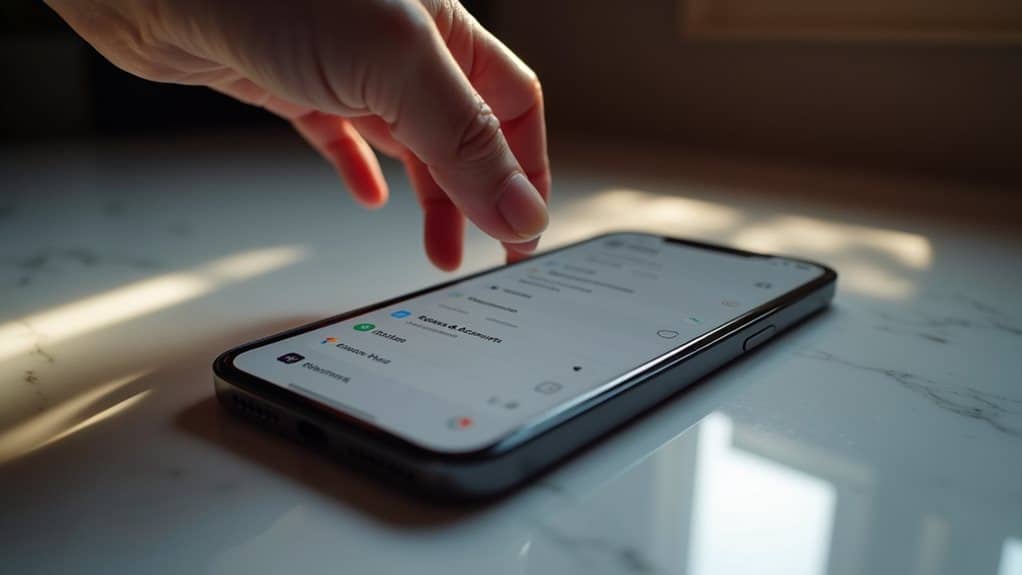
On iOS devices, you’ll find your Google passwords by accessing Safari’s Password Settings through your iPhone’s main Settings menu.
Your passwords sync through iCloud Keychain, which securely stores and manages your login credentials across Apple devices.
To view your saved Google account information, tap Settings > Passwords > search for “Google” in the search bar at the top of the screen.
Safari Password Settings Access
To access your Google passwords through Safari on iOS devices, you’ll need to navigate through your iPhone’s settings rather than the Safari app itself.
Open your iPhone’s Settings app and scroll down to find “Passwords & Accounts” or “Passwords” depending on your iOS version. Tap this option to view your saved passwords.
For Safari password settings access, you’ll need to authenticate using Face ID, Touch ID, or your device passcode.
Once verified, you’ll see an alphabetical list of all your saved passwords. To find your Google credentials, either scroll through the list or use the search bar at the top to type “Google.”
Select the Google entry to view your saved username and password. You can also copy, edit, or delete these credentials from this screen.
Icloud Keychain Storage Methods
iCloud Keychain serves as Apple’s integrated password management system for securely storing your Google and other online credentials. Through iCloud synchronization methods, your passwords remain accessible across all your Apple devices while maintaining robust encryption standards.
To leverage Keychain security features for Google password storage, you’ll need to enable iCloud Keychain in your iPhone’s settings. Navigate to Settings > [Your Name] > iCloud > Keychain and toggle it on.
Once activated, your Google passwords automatically sync when you save them in Safari or compatible apps. Your credentials are protected by end-to-end encryption and can only be accessed with your Apple ID authentication.
For additional security, you can set up two-factor authentication, ensuring your Google passwords remain protected even if someone gains access to your device.
View Saved Google Credentials
When you need to access your saved Google passwords on an iOS device, several built-in methods provide quick retrieval options. Open your Settings app and navigate to “Passwords & Accounts” under the main menu.
You’ll find credential management tools that display your stored Google account information. To enhance password visibility, tap on “Website & App Passwords” and authenticate using Face ID, Touch ID, or your device passcode.
Once verified, locate Google in the alphabetical list of saved credentials. Tap the entry to view your complete login details, including your username and password.
If you’ve enabled Chrome password sync, you can also access your Google credentials through the Chrome browser settings. Simply tap the three-dot menu, select “Settings,” and choose “Passwords” to manage your saved login information.
Using Google Password Manager on Mobile

Google Password Manager provides a secure way to access your saved passwords directly on your mobile device. To use this feature, open your device’s Settings app and navigate to Google > Manage Your Google Account > Security. Tap on “Password Manager” to view your saved credentials.
For easier Mobile Management of your Google Passwords, you can also download the standalone Google Password Manager app from your device’s app store. Once installed, sign in with your Google account to access all your stored passwords.
The app lets you view, edit, or delete saved passwords, and includes a password strength checker to help identify weak credentials.
Enable biometric authentication for an additional layer of security when accessing your passwords. You can also use the search function to quickly locate specific login information.
Password Recovery Through Google Account Settings
Should you ever forget your Google password, recovering it through your account settings provides a straightforward solution.
Begin by visiting your Google Account’s security settings and selecting “Password” under the sign-in options. You’ll find several recovery options to help you regain access to your account.
Click on “Forgot Password” and follow the verification process. Google will present you with password hints and multiple recovery methods, including sending a verification code to your backup email or phone number.
You can also answer your security questions if you’ve set them up previously.
Once you’ve verified your identity, Google will guide you through creating a new password. Remember to choose a strong password and enable two-factor authentication for enhanced security.
Store your new credentials in a secure location to prevent future lockouts.
Two-Factor Authentication and Password Access

Two-factor authentication serves as an essential security layer for accessing your stored Google passwords on your phone.
When enabled, you’ll need both your password and a secondary verification method to view your saved credentials. The two factor benefits include enhanced protection against unauthorized access and potential security breaches.
You can choose from multiple authentication methods, including SMS codes, authenticator apps, or security keys.
To access your passwords with 2FA active, you’ll first enter your Google account password, then complete the secondary verification step. The system will prompt you to use your chosen authentication method before displaying your stored passwords.
If you haven’t already set up two-factor authentication, you can enable it through your Google Account’s security settings to strengthen your password protection.
Managing Multiple Google Account Passwords
When you’re juggling multiple Google accounts on your phone, accessing and managing different passwords requires a systematic approach.
Managing account security becomes simpler when you organize your password lists effectively and use built-in tools to keep track of multiple login credentials.
- Access your phone’s Settings app and navigate to the Google Account section to view all connected accounts
- Use Google’s Password Manager to store and organize passwords for each account separately
- Enable unique security features for each account to maintain distinct protection levels
- Create a naming convention for your accounts to quickly identify primary, work, and personal profiles
- Set up different recovery methods for each account to guarantee you won’t lose access if one method fails
These practices help maintain strong security while keeping your multiple Google accounts organized and accessible.
Security Best Practices for Password Storage
You’ll need to secure any password storage apps with strong master passwords and biometric locks to prevent unauthorized access.
Enabling two-factor authentication adds an essential extra layer of security by requiring both your password and a verification code to access your Google account.
These security measures work together to protect your stored passwords from potential breaches while maintaining convenient access on your phone.
Protect Password Storage Apps
Securing your password storage apps requires implementing multiple layers of protection beyond basic authentication.
When using password management tools, enable these secure storage options and protective measures:
- Set up biometric authentication (fingerprint/face recognition) as an additional verification layer for accessing your password vault.
- Enable two-factor authentication and link it to a separate authenticator app rather than SMS.
- Configure auto-lock settings to immediately secure the app when your device screen turns off.
- Use a unique master password that’s complex and regularly updated – never reuse it across other accounts.
- Encrypt your password database with AES-256 or stronger encryption and keep offline backups in secure locations.
These security measures help safeguard your stored credentials from unauthorized access while maintaining convenient yet protected password management.
Two-Factor Authentication Benefits
Two-factor authentication provides an essential additional security layer beyond standard password protection for your Google account credentials.
When you enable this feature, you’ll need both your password and a second verification method – typically a code sent to your phone – to access your account. This enhanced security measure greatly reduces the risk of unauthorized access, even if someone obtains your password.
The system offers user convenience while maintaining robust protection. You can choose from multiple verification methods, including SMS codes, authenticator apps, or security keys.
Once set up, you’ll receive instant notifications of any login attempts, allowing you to quickly identify and block potential threats. You can also create backup codes for situations when you don’t have access to your primary verification device, ensuring you’re never locked out of your account.
Troubleshooting Common Password Access Issues
While accessing your Google password on your phone should be straightforward, several common issues can prevent successful retrieval. Understanding these challenges and their solutions will help you regain access quickly when problems arise.
- If your password manager isn’t syncing properly, force stop the app and clear its cache to refresh the connection.
- When biometric security fails to recognize your fingerprint or face, try re-enrolling your biometric data or temporarily switch to PIN authentication.
- For “account doesn’t exist” errors, verify you’re using the correct Google account email address.
- If you’re stuck in a password reset loop, clear your browser data and cookies before attempting another reset.
- When two-factor authentication codes aren’t arriving, check your phone’s network connection and verify your recovery phone number is current.
Alternative Methods for Password Retrieval
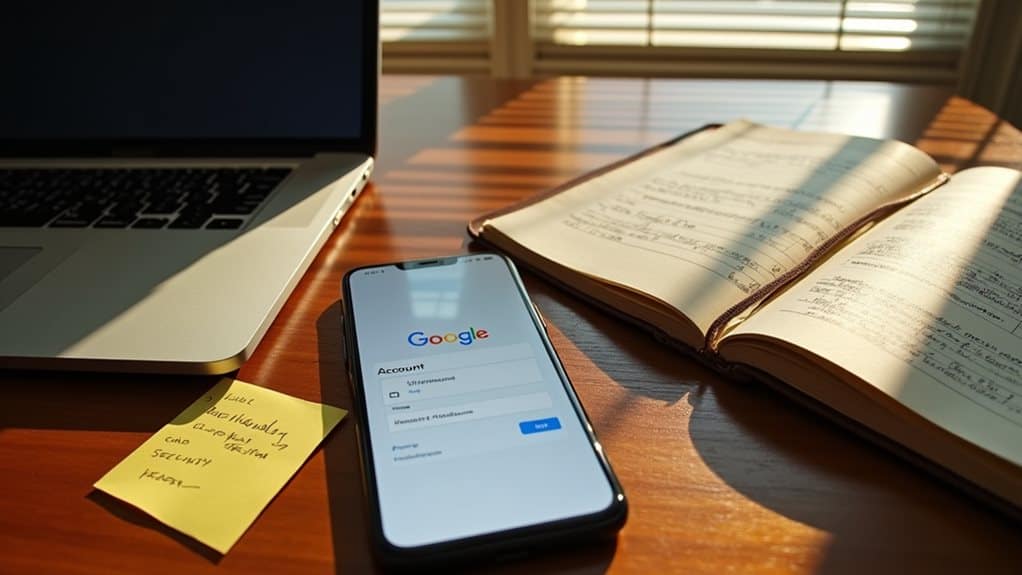
When standard password retrieval methods don’t work, several alternative approaches can help you regain access to your Google account.
You can use Google’s password hints feature, which displays clues you previously set up to jog your memory. If that’s unsuccessful, try the recovery options through a secondary email address or phone number linked to your account.
Another method involves checking your browser’s saved passwords if you’ve previously allowed Chrome to store your credentials. You can navigate to your device’s security settings and look for stored passwords under the autofill section.
For enhanced security, consider using Google’s two-step verification process once you regain access. This additional layer of protection helps prevent future lockouts while maintaining account security through multiple verification methods.
Final Thoughts
You’ve now learned multiple methods to access your Google password across different mobile platforms. Whether using Android’s built-in password manager, iOS settings, or Google’s Password Manager, you can retrieve your credentials securely. Remember to maintain strong security practices, enable two-factor authentication, and regularly update your passwords. If standard methods don’t work, you can always use Google’s account recovery options through the official website.